Connect any IP camera to Agent

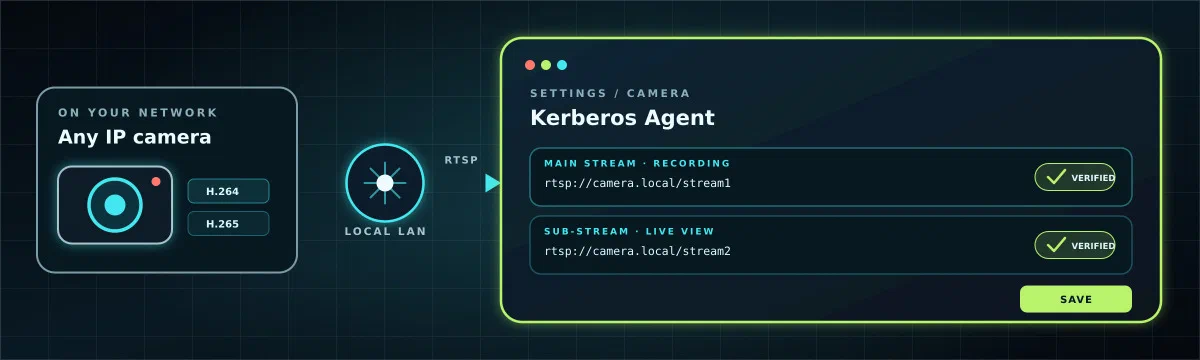
You do not need a camera-specific Kerberos integration. If your IP camera exposes an RTSP stream with H264 or H265 video, Agent can usually connect to it directly.
Before you start
You need:
- A running Agent whose web interface you can open. If you do not have one yet, follow Install Agent.
- An IP camera connected to the same network as the machine running Agent.
- The camera administrator username and password.
- A camera that can output H264 or H265 over RTSP. Use H264 for the sub-stream when you need WebRTC live view.
- A computer with
ffprobeor VLC for testing the stream.
How the connection works
Agent connects directly to the camera; the browser does not fetch the RTSP stream. The main stream is the recording source. An optional sub-stream reduces bandwidth and CPU use for live view and motion detection.
Step 1: Find the camera
Connect the camera by Ethernet when possible, power it on, and find its IP address. Use whichever method your network provides:
- Open your router or DHCP server and look for a new client.
- Use the discovery utility supplied by the camera manufacturer.
- Use an ONVIF discovery application when the camera supports ONVIF.
Open the camera’s web interface, sign in, and complete its initial setup. Give the camera a DHCP reservation or static address so its RTSP URL does not change later.
In the camera settings, make sure RTSP is enabled. Configure these profiles when available:
| Profile | Recommended codec | Purpose |
|---|---|---|
| Main stream | H264 or H265 | Full-quality recordings |
| Sub-stream | H264 | Responsive live view and motion detection |
Write down the camera IP address, RTSP port, credentials, and stream paths. RTSP normally uses port 554, but the camera may use another port.
Step 2: Build the RTSP URL
An RTSP URL usually has this shape:
rtsp://<username>:<password>@<camera-ip>:<port>/<stream-path>For example:
rtsp://agent-viewer:change-me@192.168.1.50:554/stream1The stream path is vendor-specific. Find it in the camera manual, its web interface, the manufacturer’s support site, or an ONVIF tool. Common-looking paths such as /stream1, /Streaming/Channels/101, and /cam/realmonitor?... are examples only; do not assume one matches your camera.
@, :, /, ?, or #, percent-encode those characters before putting the credentials in the URL. A password containing @, for example, must use %40 in the URL.Step 3: Test from the Agent host
Test the URL from the machine that runs Agent. This proves the camera, credentials, stream path, firewall, and network route work before Agent is involved.
ffprobe -rtsp_transport tcp \
  'rtsp://agent-viewer:change-me@192.168.1.50:554/stream1'
Look for a video stream reported as h264 or hevc (H265). You can also open the URL in VLC with Media → Open Network Stream.
If Agent runs in Docker and the host test succeeds but Agent cannot connect, test from the container’s network as well:
docker run --rm --network container:mycamera linuxserver/ffmpeg:latest \
  -rtsp_transport tcp \
  -i 'rtsp://agent-viewer:change-me@192.168.1.50:554/stream1' \
  -t 1 -f null -
Do not continue until the test succeeds. A timeout usually points to the IP address, port, firewall, VLAN, or container network. 401 Unauthorized points to the credentials; 404 Not Found usually points to the stream path.
Step 4: Connect the camera in Agent
- Open the Agent web interface and sign in.
- Open Settings and select Camera.
- Paste the tested URL into RTSP URL.
- Select Verify connection. Agent should report that the camera connection was verified.
- If the camera has a sub-stream, paste its URL into Sub RTSP URL (used for livestreaming) and select Verify sub connection.
- Select Save. Agent reloads the capture pipeline with the new camera settings.
The two URLs may differ only by their stream profile. For example:
Main: rtsp://agent-viewer:change-me@192.168.1.50:554/stream1
Sub: rtsp://agent-viewer:change-me@192.168.1.50:554/stream2Step 5: Verify live view and recording
Return to the Agent dashboard and confirm that live video appears. Then verify recording:
- Open Settings → Recording.
- Temporarily enable continuous recording, or leave motion recording enabled and move in front of the camera.
- Save the configuration and wait for a clip to finish.
- Open Recordings and play the new clip.
A working live view alone is not enough when you configured a sub-stream: recordings still depend on the main stream. Confirm both paths before considering the camera ready.
Configure without the web interface
For a container managed with Docker Compose or Kubernetes, set the same streams with environment variables:
services:
  agent:
    image: kerberos/agent:latest
    restart: always
    ports:
      - "8080:80"
    environment:
      AGENT_NAME: front-door
      AGENT_CAPTURE_IPCAMERA_RTSP: rtsp://agent-viewer:change-me@192.168.1.50:554/stream1
      AGENT_CAPTURE_IPCAMERA_SUB_RTSP: rtsp://agent-viewer:change-me@192.168.1.50:554/stream2
Recreate the container after changing the environment:
docker compose up -d --force-recreate
docker compose logs -f agent
Environment variables override values saved through the web interface. If a field appears to revert after you save it, check the container environment first.
Troubleshooting
| Symptom | What to check |
|---|---|
| Connection times out | Confirm the camera IP and RTSP port from the Agent host; check firewall and VLAN rules. |
401 Unauthorized | Re-enter the camera credentials and test whether the account may view RTSP. |
404 Not Found | Look up the exact main or sub-stream path for the camera model. |
| Verification works, but no live video appears | Use H264 for the sub-stream and check that the camera allows more than one simultaneous RTSP client. |
| Live view works, but no recordings appear | Test the main URL separately and review the recording mode under Settings → Recording. |
| Stream disconnects repeatedly | Prefer wired Ethernet, lower the camera bitrate, and inspect docker logs -f mycamera for packet loss or frame-gap warnings. |
| Settings do not persist | Check for AGENT_CAPTURE_IPCAMERA_RTSP environment overrides and use persistent configuration storage. |
Next steps
- Tune motion and recording behavior in the Agent documentation.
- Add a second camera by deploying a second Agent; one Agent process or container manages one camera.
- Connect Agent to Hub when you want centralized live monitoring, search, alerts, and remote management.