White-label
Kerberos Hub can be styled towards your company marketing branding and/or preferred style guides. By injecting a custom CSS file, and overriding our icon library, you can make Kerberos Hub feel like it’s your own product; and we do not have any problem with that.
We believe that a consistent and streamlined company branding is important when using 3rd party applications in your companies ecosystem.
Next to styling Kerberos Hub yourself, we can also rebrand the application for your needs as part of the Kerberos Enterprise Suite license. In the end nothing stops you to perform the layout changes yourself, whenever you want.
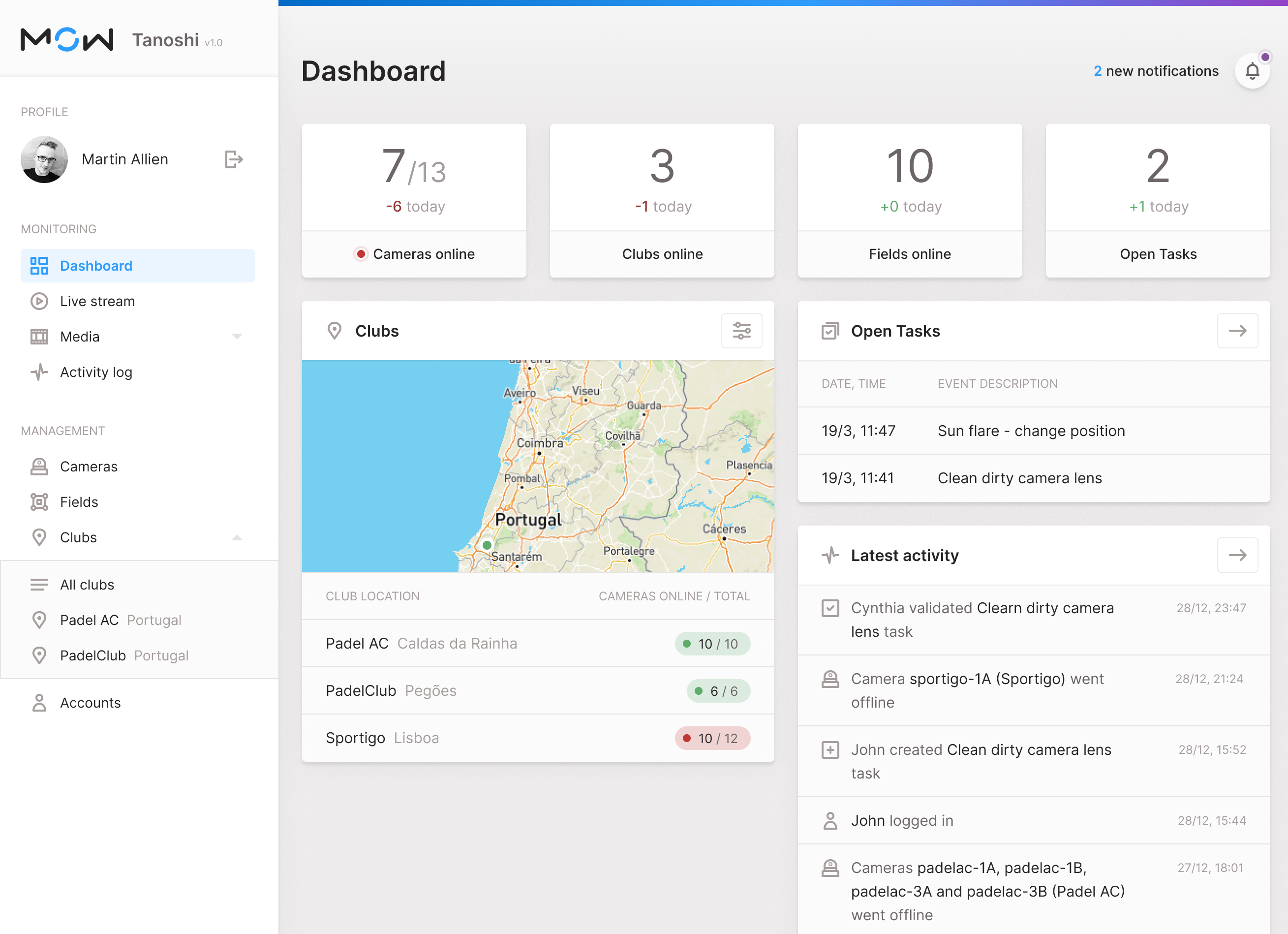
By injecting a CSS file into the Kerberos Hub Front-end container, you can choose your own colors.
Overriding the Kerberos Hub styling
The recommended approach to add your custom styling is to inject a custom stylesheet file .css in the Kerberos Hub Front-end container. Let’s start by creating a .css file, and include all the relevant CSS elements which you would like to modify. This could look like this.
.app .sidebar.closed {
  background: red !important;
}
To know which element you need to style, we advice to use the inspect elements tool of your Chrome/Safari/Firefox browser developer tools.
Once you are happy with your styling, you can proceed with the injection in the front-end container.
Injection is done through the concept of Persistent Volumes (PV). A PV is mapped in a front-end container, and is overriding the local directory of the front-end container with your changes made in the PV. If you are not familiar with a PV, you might need to learn about it first.
Once you created a PV and uploaded your stylesheet, you should create a Persistent Volume Claim (PVC), so you can share it with the Kerberos Hub front-end container.
To share the PVC, you need to make a few changes in the Kerberos Hub Helm chart values.yaml. Uncomment the volumeMounts and volumes properties. Change the PVC accordingly and keep the mountPath unchanged.
If all set, commit your changes by doing an helm install or helm upgrade.
Custom logo
Similar to overriding the Kerberos Hub styling you can inject your own company logo as well. This logo will be used on the login page and sidebar once signed in. Make sure to name your company logo as following, logo-sidebar.svg.
To inject your logo, upload it into the same PV as you used for the custom styling.
Custom icons
If you do not like the icons we are using, you can also modify those by injecting your own SVG icon library. An example of the icon library can be found here: icon.js.
All icons are sorted in alphabetic order, and each icon has a generic naming convention and relevant SVG element.
Make sure you are using SVG icons, we do not support other formats at the moment of writing.
(function(window) {
window["env"] = window["env"] || {};
window["env"]["svg"] = window["env"]["svg"] || {};

    /* Accounts */
    window["env"]["svg"]["accounts"] = `<svg class="icon" width="18" height="18" viewBox="0 0 18 18" fill="none" xmlns="http://www.w3.org/2000/svg">
    <path fill-rule="evenodd" clip-rule="evenodd" d="M9 2C7.89543 2 7 2.89543 7 4C7 5.10457 7.89543 6 9 6C10.1046 6 11 5.10457 11 4C11 2.89543 10.1046 2 9 2ZM5 4C5 1.79086 6.79086 0 9 0C11.2091 0 13 1.79086 13 4C13 6.20914 11.2091 8 9 8C6.79086 8 5 6.20914 5 4Z" fill="currentColor"/>
    <path fill-rule="evenodd" clip-rule="evenodd" d="M3.9981 11.3995C5.29471 9.88675 7.08937 9 9 9C10.9106 9 12.7053 9.88675 14.0019 11.3995C15.2944 12.9074 16 14.9238 16 17C16 17.5523 15.5523 18 15 18L3 18C2.44772 18 2 17.5523 2 17C2 14.9238 2.70558 12.9074 3.9981 11.3995ZM9 11C7.72803 11 6.47044 11.5882 5.51662 12.701C4.75666 13.5877 4.24797 14.743 4.07017 16L13.9298 16C13.752 14.743 13.2433 13.5877 12.4834 12.701C11.5296 11.5882 10.272 11 9 11Z" fill="currentColor"/>
</svg>`

    /* Activity / pulse (Latest Activity) */
    window["env"]["svg"]["activity"] = `<svg class="icon" width="18" height="18" viewBox="0 0 18 18" fill="none" xmlns="http://www.w3.org/2000/svg">
    <path fill-rule="evenodd" clip-rule="evenodd" d="M9.92677 0.00271038C10.4021 -0.03219 10.836 0.273183 10.9635 0.732382L13.094 8.40217L13.4453 8.16798C13.6096 8.05846 13.8026 8.00003 14 8.00003H17C17.5523 8.00003 18 8.44774 18 9.00003C18 9.55231 17.5523 10 17 10H14.3028L13.0547 10.8321C12.7879 11.0099 12.4521 11.0491 12.1515 10.9374C11.851 10.8256 11.6223 10.5766 11.5365 10.2677L10.3729 6.07887L8.99228 17.1241C8.93316 17.597 8.54854 17.9624 8.07323 17.9973C7.59793 18.0322 7.16404 17.7269 7.03648 17.2677L4.90599 9.59789L4.5547 9.83208C4.39043 9.94159 4.19742 10 4 10H1C0.447715 10 0 9.55231 0 9.00003C0 8.44774 0.447715 8.00003 1 8.00003H3.69722L4.9453 7.16797C5.21207 6.99013 5.54794 6.95098 5.84846 7.0627C6.14898 7.17442 6.37771 7.42346 6.46352 7.73238L7.62707 11.9212L9.00772 0.875991C9.06684 0.403086 9.45146 0.0376109 9.92677 0.00271038Z" fill="currentColor"/>
</svg>`

...
Custom favicons
Favicons are injected into the container just like the custom stylesheet, logo and icons. The only difference is that they are not stored in the custom directory, but are stored in the favicons directory. An example of the favicons content can be found here.
To make this work an additional volumeMount has to be created and relevant PVC. Once you’ve done that you will see your own favicons appear.
Custom translations
Kerberos Hub ships with built-in internationalization (i18n) files for the supported languages. These translation files live in the front-end container under the assets/i18n directory, and contain one .json file per language (e.g. en.json, nl.json, fr.json, …). You can override any of these strings with your own translations, which is handy to rename labels, reword sentences or fully white-label the wording used throughout the application.
To customize the wording, you provide your own files in the assets/i18n-custom directory. Each file only needs the keys you want to change; any key you leave out keeps the shipped translation, so you only maintain your own changes and only need files for the languages you actually customize.
The easiest way to find the right keys is to use the original English translation file as a reference. An example of the English translation file can be found here, and a partial override example lives in custom-layout/i18n-custom/en.json.
To rename the Dashboard label in the navigation, for example, your en.json only needs the single key you are changing:
{
  "nav": {
    "dashboard": "Command Center"
  }
}
Make sure to keep the same file names (en.json, nl.json, …) so the front-end can match them to the correct language.
To inject your translations, upload your .json files into a Persistent Volume and create a Persistent Volume Claim (PVC) so it can be shared with the Kerberos Hub front-end container. Then add an additional volumeMount and volume to the kerberoshub.frontend section of the Helm chart values.yaml, pointing the mountPath to /usr/share/nginx/html/assets/i18n-custom.
kerberoshub:
  frontend:
    ...
    logo: "custom"
    # Custom layout: override css, favicons and translations (i18n)
    volumeMounts:
      - name: custom-i18n
        mountPath: /usr/share/nginx/html/assets/i18n-custom
    volumes:
      - name: custom-i18n
        persistentVolumeClaim:
          claimName: custom-i18n-claim
You can combine this with the volumeMounts and volumes used for the custom styling and favicons. Once set, commit your changes by doing an helm install or helm upgrade and your own translations will appear.
Custom email templates
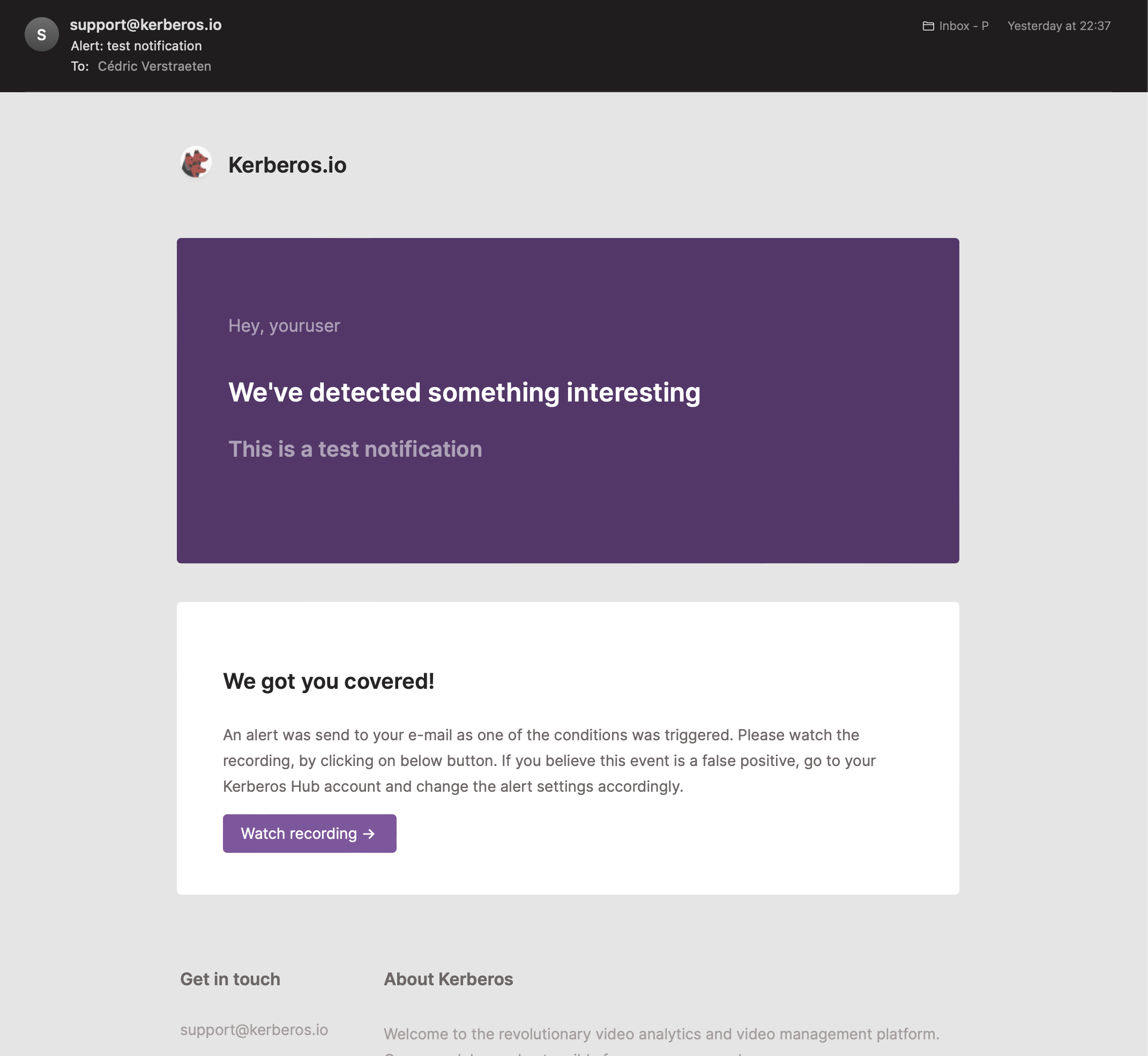
Within the Kerberos Hub application different events and notifications are sent; for example the email shown below. Notifications are sent on different events such as account creation, forgot-password requests, event detection (an object found in a region or crossing a counting line), and more.
 .
.
As Kerberos Hub can be white-labeled, you can bring your own email templates and style them to match the Kerberos Hub interface. By doing so you get a unique, consistent styling across the entire Kerberos Hub application.
Within Kerberos Hub we use a couple of different email templates, which are used in different scenarios (as described above). For each template there is a .txt and .html which respectively provides the email in a text-only mode and for the latter a designed email that the email client is able to render.
These templates cover the full range of Kerberos Hub notifications — account lifecycle (welcome, activation, password reset), sharing (recording and case sharing), task assignment, and event and device alerts. Each one ships with a Kerberos-branded default and can be overridden in the same way; the complete list of template names and the values they map to is in the tables further down.
Email templates are injected just like the custom stylesheet, logo and icons, through a Persistent Volume. The differences are that the files live in a templates directory (instead of custom), and that the volume is shared with the back-end services that actually send the emails rather than with the front-end.
Start from the default templates and edit the ones you want to change. Each email has both an .html (designed) and a .txt (plain-text) version — keep both, and don’t rename them: the file name has to match the template-name value from the table below (for example welcome.html and welcome.txt).
Upload your files into a Persistent Volume inside a templates/ folder and create a Persistent Volume Claim (PVC) — you can reuse the same custom-layout-claim as the other customizations. The application reads templates from /mail/templates, so the volumeMount is pointed at /mail and your files must live under a templates/ folder in the volume.
Then add (or uncomment) the volumes and volumeMounts in the Helm chart values.yaml for the four services that send emails: kerberoshub.api (account, sharing and task emails), kerberoshub.monitordevice (device status emails), kerberospipeline.notify (alert emails) and kerberospipeline.notifyTest:
kerberoshub:
    api:
        ...
        schema: "https"
        url: "api.yourdomain.com"

        # E-mail templates
        volumeMounts:
          - name: custom-email-templates
            mountPath: /mail
        volumes:
          - name: custom-email-templates
            persistentVolumeClaim:
              claimName: custom-layout-claim
    monitordevice:
        ...
        # E-mail templates
        volumeMounts:
          - name: custom-email-templates
            mountPath: /mail
        volumes:
          - name: custom-email-templates
            persistentVolumeClaim:
              claimName: custom-layout-claim
kerberospipeline:
    ...
    notify:
        ...
        # E-mail templates
        volumeMounts:
          - name: custom-email-templates
            mountPath: /mail
        volumes:
          - name: custom-email-templates
            persistentVolumeClaim:
              claimName: custom-layout-claim
    notifyTest:
        ...
        # E-mail templates
        volumeMounts:
          - name: custom-email-templates
            mountPath: /mail
        volumes:
          - name: custom-email-templates
            persistentVolumeClaim:
              claimName: custom-layout-claim
Once set, commit your changes by doing an helm install or helm upgrade. Your own email templates will now be used; any template you don’t provide automatically keeps the built-in Kerberos default.
Template names and subjects
Aside from the in-template {{variables}}, each email type has two values in the chart’s email.templates block (values.yaml) that you may need to keep in sync when white-labeling:
- The template name (for example
welcome: "welcome") is the file name — without extension — that the application looks for in/mail/templates. When you override a template, name your files exactly after this value (for examplewelcome.htmlandwelcome.txt). If the file name and this value don’t match, the application falls back to the built-in Kerberos default. - The subject line (for example
welcomeTitle: "...") is set separately from the template body, so you can reword a subject without touching the.html/.txtfiles.
| Template-name value | Subject value | Default file name | |
|---|---|---|---|
| Welcome | welcome | welcomeTitle | welcome |
| Account activation | activate | activateTitle | activate |
| Password reset | forgot | forgotTitle | forgot |
| Recording share | share | shareTitle | share |
| Case share invite | caseShare | caseShareTitle | share_case |
| Case share verification code | caseShareOtp | caseShareOtpTitle | share_case_otp |
| Task assignment | assignTask | assignTaskTitle | assign_task |
| Event / detection alert | detection | alertTitle | detection |
| Device status change | device | deviceTitle | device |
Template variables
Within an email template you can use variables, which are indicated through {{variable}}. Each variable is automatically replaced by its value when the email is sent.
Not every variable is available in every template. Each email is sent with its own set of data, so a variable only resolves in the templates that provide it. A variable that has no value for that email stays in the email as literal text (for example {{link}}), so only use the variables listed for each email below.
The bundled templates also contain {{tab1_href}}, {{tab1_title}}, {{tab2_href}} and {{tab2_title}}. These are not filled in.
Links in emails
Links are built from the front-end address in the Helm chart:
- The base URL is
kerberoshub.frontend.schema+://+kerberoshub.frontend.url, for examplehttps://app.yourdomain.com. - The tenant URL is the base URL with the first part of the host replaced by the recipient account’s domain. With base URL
https://app.yourdomain.comand account domainacme, the tenant URL ishttps://acme.yourdomain.com. Accounts without a domain use the base URL. Only the last two parts of the host are kept, soapp.yourdomain.co.ukbecomesacme.co.uk.
Alert email (detection)
Sent when a custom alert or the generic detection alert fires. The subject is the alertTitle value; for a custom alert it is prefixed with the alert’s name in brackets, for example [Front door] Kerberos Hub detected an event.
| Variable | Value |
|---|---|
{{user}} | Name of the account that receives the alert: first and last name, or the username when both are empty. This is the account the camera belongs to, not the user who created the alert. |
{{title}} | The email subject. |
{{text}} | The alert message: what was detected, on which camera and when. |
{{link}} | Custom alerts: a signed link to the recording file. It stops working when the storage link expires. Generic detection alert: the recording’s page in Hub, <tenant URL>/media/<id>. |
{{medialink}} | https://app.kerberos.io/media/<id>. Always this host; it does not follow your front-end address. |
{{thumbnail}} | An image of the recording: embedded in the email for custom alerts, a thumbnail link for the generic detection alert. |
{{date}}, {{time}}, {{datetime}} | Start of the recording, in the account’s timezone. |
{{eventdate}}, {{eventtime}}, {{eventdatetime}} | When the alert was sent, in the account’s timezone. |
{{timezone}} | The account’s timezone. |
{{devicename}}, {{deviceid}} | Camera name and camera key. |
{{sites}}, {{groups}} | Comma-separated names of the sites and groups the camera belongs to. |
{{classifications}} | Comma-separated objects detected in the recording. |
Device status email (device)
Sent when a camera goes online, offline or idle. The subject is the deviceTitle value.
| Variable | Value |
|---|---|
{{user}} | Username of the account the camera belongs to. |
{{title}} | The email subject. |
{{text}} | The status change, for example “<camera> is online, but the camera stream is not connected.” |
{{status}} | online, offline or idle. |
{{devicename}}, {{deviceid}} | Camera name and camera key. |
{{eventdate}}, {{eventtime}}, {{eventdatetime}} | When the status changed, in the server’s timezone (normally UTC), not the account’s. |
{{link}} | Not set; replaced with an empty value. |
Account, sharing and task emails
| Email (template) | Variable | Value |
|---|---|---|
Welcome (welcome), sent when an account is created | {{user}} | The new user’s first and last name, or username. |
{{link}} | Activation link: <base URL>/login/activate/<token>. | |
{{token}} | The activation token. | |
Account activated (activate) | {{user}} | The user’s first and last name, or username. |
{{link}} | Sign-in page: <base URL>/login. | |
Password reset (forgot) | {{user}} | The user’s first and last name, or username. |
{{password}} | The newly generated password. | |
{{ipaddress}} | IP address the reset was requested from. | |
Recording shared (share) | {{user}} | The sender’s first and last name, or username. |
{{url}} | Signed link to the recording file. | |
{{title}} | The email subject (shareTitle). The share’s own title is only used when shareTitle is empty. | |
{{body}} | The note the sender added to the share. | |
Case shared (share_case) | {{user}} | The sender’s first and last name, or email address. |
{{firstname}}, {{lastname}} | The sender’s first and last name. | |
{{url}} | Link to the shared case: <base URL>/share/<token>. | |
{{expiry}} | How long the share stays valid, for example “2 days” or “1 week”. | |
Case share code (share_case_otp) | {{code}} | The one-time code the recipient enters to open the shared case. |
{{expiry}} | How long the code stays valid. | |
Task assigned (assign_task) | {{assignee}} | The assigned user’s first and last name, or username. |
{{user}} | Name of the user who assigned the task. | |
{{task_name}} | The task title. | |
{{link}} | <tenant URL>/tasks/, using the assigned user’s domain. |
The newip, disable and highupload templates are included in the default set, but no service currently sends them.